18. How can I import and manage my leads in ITS?

If you already have a list of potential buyers (leads) that you want to manage in Freshdi’s ITS (Intelligent Tracking System), you can easily add new leads manually or import them using a CSV file. Once imported, you can track replies, manage communications, and send quotations directly from your ITS dashboard.

You can also download a lead CSV template to create a new lead list before uploading it to your account.


1. Import by using CSV file

1.1. Lead CSV Template

You can download and use the Lead CSV Template as a guide to format your data correctly before importing. The template includes sample buyers with key fields such as Name, Email, Company, Country, and Product Interest.

If you import the CSV template without changing the sample data, two example leads (e.g., “Jane Doe” and “John Doe”) will appear in your ITS dashboard for reference.

1.2. Description of the Lead CSV File

Below is a list of all supported columns in the lead CSV file.

Column

Description

Company Name

The registered or trading name of the lead’s company.

Full Name

The name of the main contact person from the company.

Position

The job title or role of the contact person (e.g., Purchasing Manager, Sales Director).

Email

The business email address of the contact person. This column is required but can be blank.

Country Code

The country or region code (ISO Alpha-2 format, e.g., US, VN, TH).

Phone Number

The contact phone number of the lead, including the country code if available.

Source

The origin of the lead (e.g., “Trade Show”, “Other B2B Platform”, “Social Media”).

Import History

Notes about how or when the lead was imported (e.g., “Imported on 2025-11-01”, “From CRM System”).

Categories

The product categories or industries the lead is interested in (e.g., “Rice”, “Coffee”, “Spices”).

Company Website

The company’s official website URL.

1.3. CSV Import Considerations

Before importing, review the following:

  • The first line of your CSV must include the column headers.

  • The Email column is required to avoid duplicates and help identify existing leads.

  • CSV headers aren’t case-sensitive.

  • The file size limit is 10 MB per import. You can use multiple files if needed.

  • Only UTF-8 encoded CSV files are supported.

⚠️ Important: Avoid uploading lists of unsolicited or purchased contacts. Always ensure your leads have shown prior business interest or consent to be contacted.

1.4. Import Existing Leads Using the CSV File

You can upload a CSV file to add or update leads in your ITS account.

Steps:

  1. From your ITS dashboard, go to Leads → Import File.

  2. Click Upload CSV File and select your lead list.

  3. Optional:

  • Check “Overwrite existing leads” to update leads with matching email addresses.

  • Add tags to organize imported leads (e.g., “Q4Campaign”, “TradeShow2025”).

  1. Click Import Leads.

  2. Once uploaded, you’ll see all leads appear in your lead list. You can start tracking activities, marking replies, and sending quotations right away.

💡 Tip: Duplicate leads (same email or phone) will be skipped during import. Only the most recent entry is kept.


2. Add leads manually

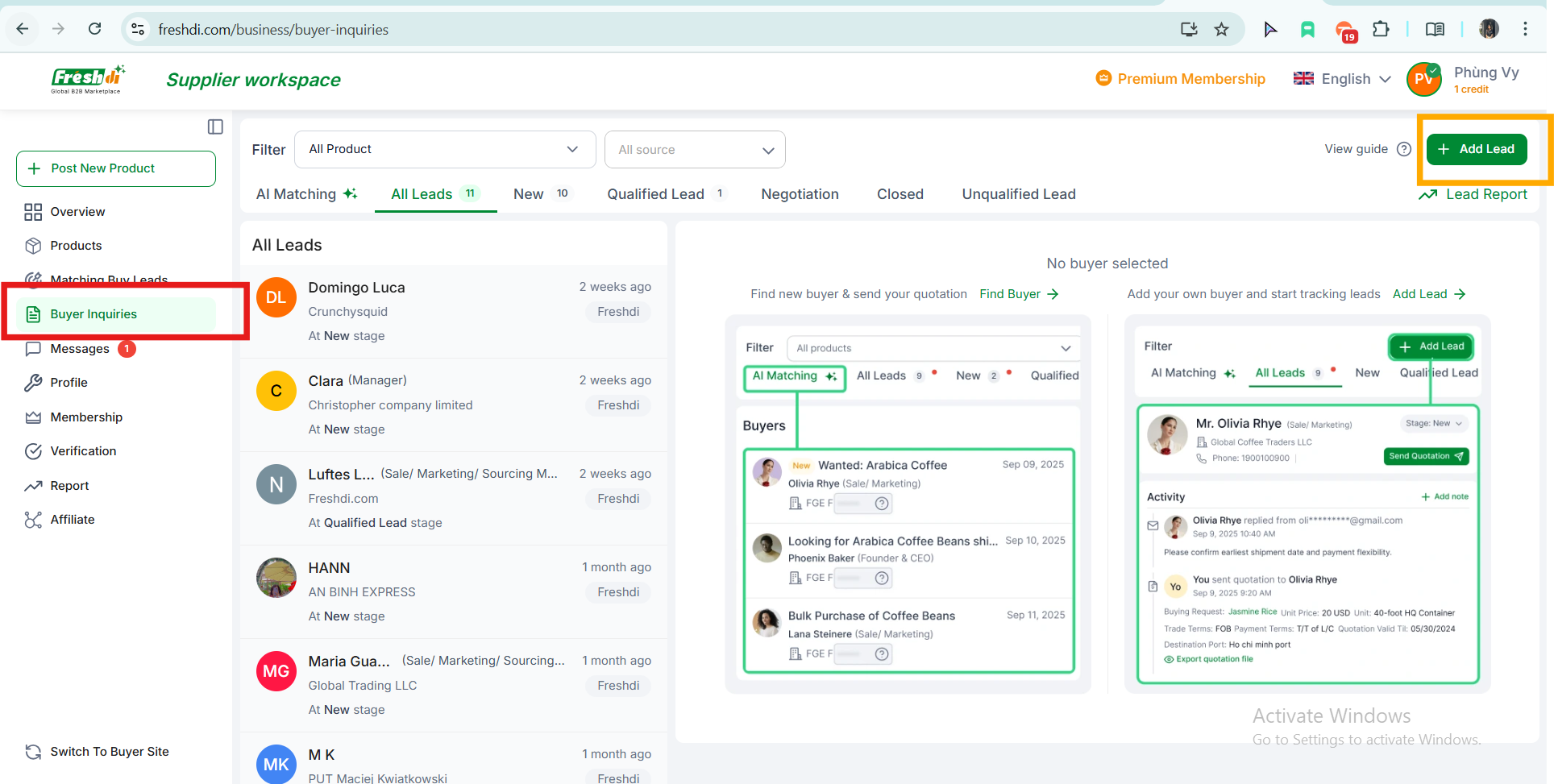
If you only have a few leads or want to add new ones individually, click “Add Lead” from your ITS dashboard (Buyer Inquiry).

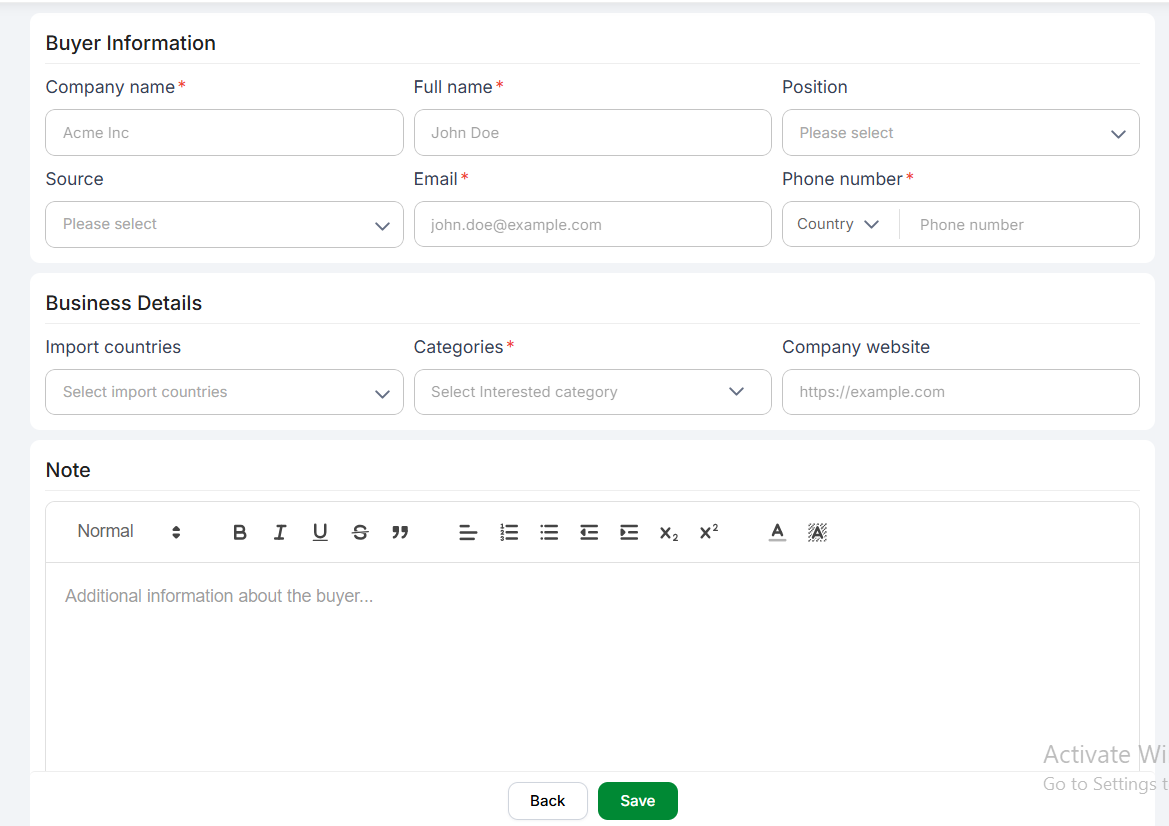
Fill in the necessary details including buyer name, company, country, email, product interest, and message.

You can also choose source (e.g., “Social media” or “Other B2B Platforms”) to help organize and track your leads.

After saving, your new lead will instantly appear in your ITS list, where you can follow up, update status, track replies, and send quotations — just like imported leads.

Create your free Supplier account and start showcasing your products to global buyers.

Access verified buyer requests and connect directly with those looking for your products.

Add your products to your store to get discovered by buyers searching on Freshdi.

Verify your phone, email, and business license to build trust and receive higher-quality leads.

Upgrade to Premium to reach 300–3,000+ verified buyers monthly, unlock contact credits, and boost your visibility.

Last updated